
Desktop App
A visual guide to scanning, setup, redaction, and pseudonymization in shk Desktop.
On this page
shk Desktop brings scanning, masking, setup, and audit review into one local app. It uses the same detection engine and policy as the CLI. While open, it also sends OS notifications when a hook blocks AI activity.
What the app does
| Goal | Screen / action | What to check |
|---|---|---|
| Add a project | New project → open a folder or clone Git | Sidebar project and last-scan time |
| Review detections | Run scan → Findings | Severity, rule, file, and line |
| Set up protection | Setup → Review and adjust items | Policy, ignores, Git / AI hooks, encryption, npm hardening, skills |
| Prepare content for AI | Mask for AI → Redact / Pseudonymize | Compare input and output before copying |
| Investigate blocks | Overview → Blocked AI activity | Metadata from .shk/audit.log |
| Open your usual tool | Open in… | Cursor, VS Code, Antigravity, Claude Desktop, ChatGPT |
The interface is also available in Japanese.
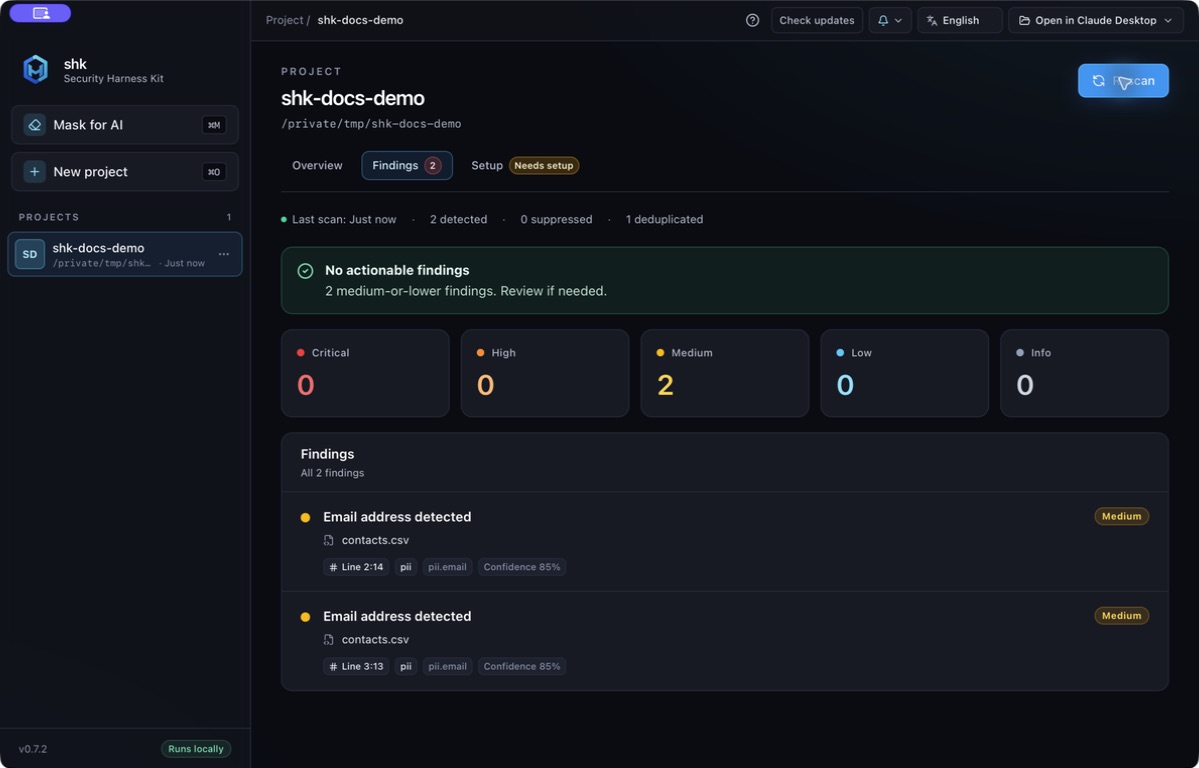
After Run scan, review Findings. This example has two Medium findings: detections remain visible even below the blocking threshold.
Set up protection
- Open Setup, then Review and adjust items to check what will be applied.
- Select Apply recommended setup. Use Advanced settings for individual changes.
- Install the CLI as well to run Git and AI tool hooks.
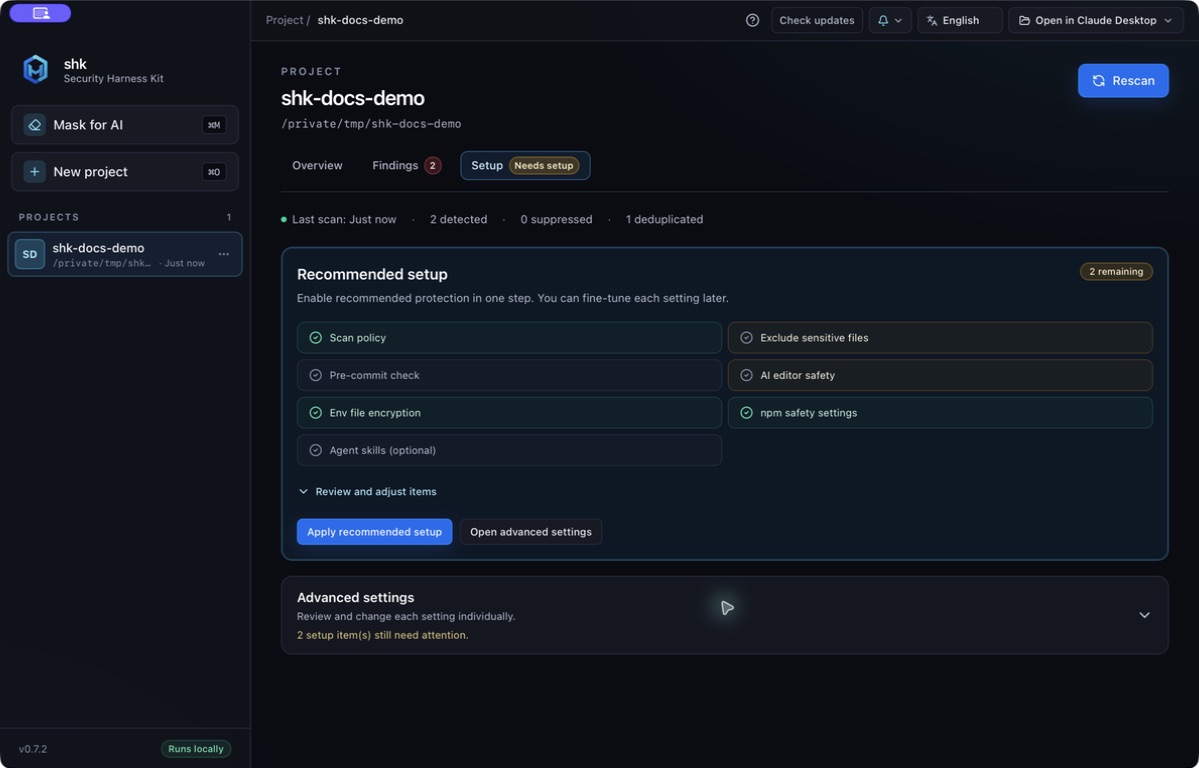
Review ready and pending items before applying. This sample folder is not a Git repository, so pre-commit setup is unavailable.
| Action | macOS |
|---|---|
| Open project | ⌘O |
| Scan | ⌘R |
| Mask workspace | ⌘M |
| Run masking from the input field | ⌘↵ |
| Welcome screen | ⌘⇧N |
On Windows and Linux, use Ctrl instead of ⌘.
Pseudonymize
Choose a method based on whether you need to preserve relationships between shared values. The switch is available from desktop-v0.7.1.
| Compare | Redact | Pseudonymize |
|---|---|---|
| Replacement | Detected value → [REDACTED] |
Names, emails, phones → consistent codes |
| Use for | Removing sensitive content | Keeping repeated values joinable for analysis |
| Project | Optional | Requires a project with shk.toml |
| CSV / TSV / Excel | Mask according to detection rules | Choose columns and their types |
| Text-layer PDFs (desktop only) | Not supported | |
| Restore | No restore map | Optional encrypted map for file input |
With the same project key, codes match across files and between the CLI and app. This is the GUI for shk mask --pseudonymize.
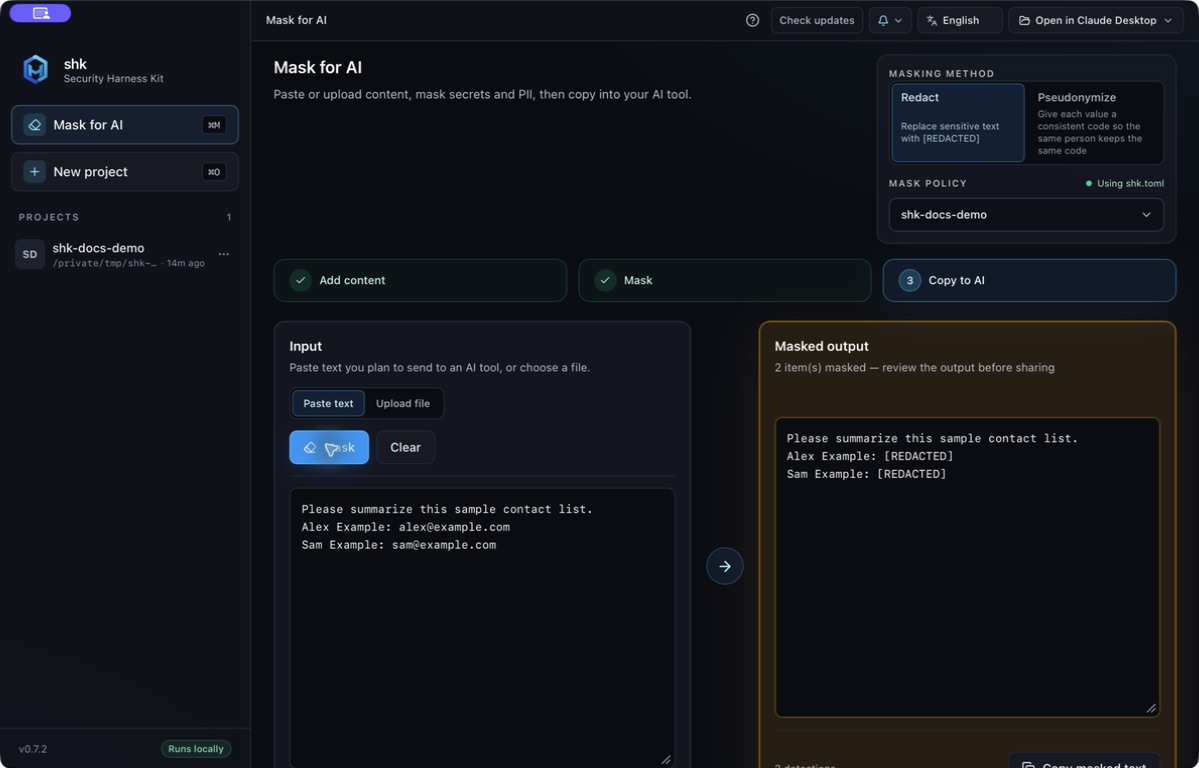
Compare Input with Masked output. Review for any undetected information before copying.
Requirements
- Select a project with
shk.tomlunder Mask policy. - On the first run, Create a pseudonymize key for
<project>? names the store before creating the key. It lives in the credential store configured by[env].secret_store: the OS keyring by default, or 1Password. It is never written into the project folder. - If the store is unavailable, the run fails with the reason; it does not fall back to another store.
Choosing what to pseudonymize
- 1. Add contentOpen a file or paste a table
- 2. Choose columnsCheck columns and data types
- 3. Run and reviewPseudonymize → save or copy
- Choose Pseudonymize, then open CSV, TSV, or Excel (
.xlsx). For pasted tables, set Pasted content is to CSV table / TSV table. - Review the table preview (scroll to see up to 100 rows and every column), check the columns to process, and choose their types.
- Run Pseudonymize, then review the counts and output.
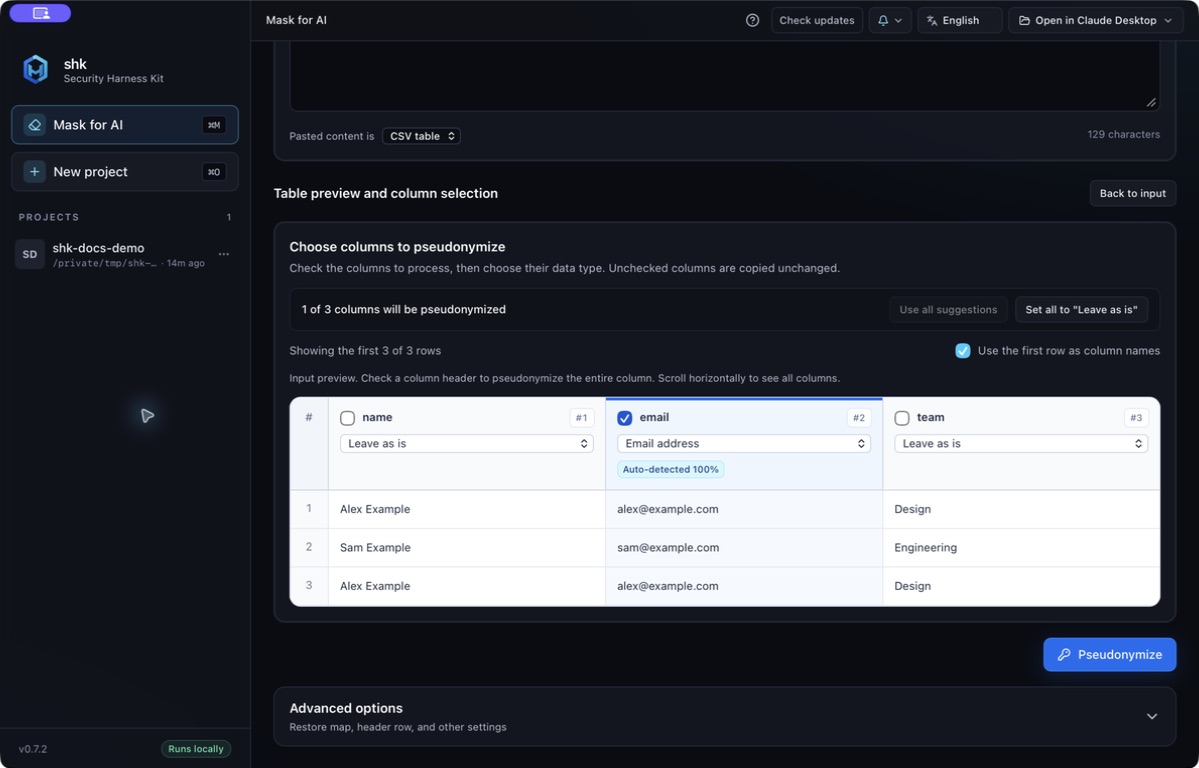
Only email is selected here. The unchecked name and team columns stay unchanged. To hide names too, select name and choose Person’s name.
| Column type | Use |
|---|---|
| Email address / Phone number / Person’s name | Specify the kind of value |
| Other | Custom label such as member_id: lowercase letter first, then lowercase letters, digits, or _. Becomes the code prefix |
| Leave as is / unchecked | Copy unchanged |
| Formula (kept as is) | Cannot be selected; formulas are not turned into constants |
Selection helpers and input differences
| Item | Behavior |
|---|---|
| Auto-detected / Project setting | Sample-based suggestion with match percentage / [pseudonymize.columns] setting. Selected on load |
| Use all suggestions | Restore suggested selections |
| Set all to "Leave as is" | Clear every selection |
| Multi-sheet Excel | Process only the selected sheet |
| Table without a header | Change the header setting to address columns as 1, 2, 3… |
| Text / Markdown / Word / PowerPoint | No column picker. Replace detected names, emails, and phones; other detections become [REDACTED]. Word and PowerPoint retain formatting |
| Switching to Pseudonymize clears the selected PDF. Use Redact instead |
Only checked columns are processed. Auto-detection and project settings never add an unchecked column. This differs from the CLI, which can infer columns. Choosing a table file in Redact also offers a shortcut to Pseudonymize.
Output and restore
| Output | Contents / handling |
|---|---|
<name>.pseudo.<ext> |
Save dialog suggests a sibling of the original and preserves its extension. Can be saved outside the project |
<output>.shk-meta.json |
Written beside the output. Column names and kinds, counts, and the key fingerprint; no original values or codes |
<name>.shk-map (optional) |
Advanced options → Also save a restore map. File input only; saved beside output. Never send it to AI |
| Pasted content | Result below input, with Copy masked text and an AI app shortcut. No disk output or restore map |
[UNPARSED] |
Value could not be parsed as the chosen kind; cannot be restored |
Review processed rows, replacement counts by kind, and the [UNPARSED] count in the summary. Each written file has a Copy path button.
Keep the restore map and project key private. Anyone with both can recover the original values.
Restore and key management use the CLI:
shk pseudonymize restore --file <pseudonymized> --map <map> --output <restored>For inspecting, rotating, or deleting the key, see shk pseudonymize key show / rotate / delete.
Installation
The desktop app is distributed separately from the CLI, and it is an addition to the CLI rather than a replacement. Scanning and masking work inside the app on their own, but the Git and AI tool hooks that Quick Setup installs run the shk command, so install the CLI as well; without it on PATH, the hooks do nothing and the app shows a "shk command not found" warning. Releases are published from desktop-vX.Y.Z (or combined shk-vX.Y.Z) tags as shk-desktop_* assets on GitHub Releases. Starting with desktop-v0.6.0, macOS builds are Developer ID signed, notarized, and stapled. Windows installers are currently not Authenticode-signed.
Choose an installer
| Platform | Asset pattern | Notes |
|---|---|---|
| Linux x86_64 | shk-desktop_*_x86_64-unknown-linux-gnu_*.AppImage or *.deb |
AppImage needs chmod +x |
| Linux aarch64 | shk-desktop_*_aarch64-unknown-linux-gnu_*.AppImage or *.deb |
Same as above |
| macOS Intel | shk-desktop_*_x86_64-apple-darwin_*.dmg |
Signed and notarized; drag shk.app to /Applications |
| macOS Apple Silicon | shk-desktop_*_aarch64-apple-darwin_*.dmg |
Same as above |
| Windows x86_64 | shk-desktop_*_x86_64-pc-windows-msvc_*setup.exe or *.msi |
Currently unsigned |
Download from the release page for your tag, for example:
https://github.com/Kazuki-tam/security-harness-kit/releases/tag/desktop-v0.7.4Verify checksums when available:
curl -LO https://github.com/Kazuki-tam/security-harness-kit/releases/download/desktop-v0.7.4/shk-desktop.sha256sum
sha256sum -c shk-desktop.sha256summacOS
Installers from desktop-v0.6.0 onward are Developer ID signed and notarized; Gatekeeper opens them without workarounds. If you still run an older unsigned early access build, replace it with a signed .dmg install. The in-app updater also migrates existing installs because all releases share the same Tauri updater signing keys.
Windows SmartScreen
Windows installers are currently not Authenticode-signed, so SmartScreen may show Windows protected your PC. Choose More info → Run anyway if you trust the release checksum and attestation.
Blocked-activity notifications
While the app is open it tails .shk/audit.log for every project in the sidebar and raises an OS notification when a hook blocks AI activity. The bell menu in the top bar turns notifications off, or narrows them to one kind of block; both kinds are on by default.
Details worth knowing:
- Only blocks recorded after a project appears in the sidebar are announced. Existing history never produces a backlog of notifications.
- Blocks arriving within a few seconds collapse into a single notification.
- Notification text is limited to the block reason, the risky-action category, and the AI tool. File paths are deliberately left out, because notifications render on the lock screen and are persisted by the OS; use the Blocked AI activity panel to see them.
- Turning notifications off stops the banners, not the tailing: the audit panel still updates while the app is open.
In-app updates
The app never checks for updates on its own; you start the check from the top bar:
- Choose Check updates in the top bar. The app reads
desktop-latest/latest.jsonon GitHub and compares it with the running version. - If you are current, the app says so and nothing else happens.
- If a newer release exists, the app shows the version and offers Download and restart. Confirm to download the updater package, install it, and relaunch the app. Cancel to keep the current version; the check does not download anything by itself.
Updater packages are always signed with the project Tauri updater key, independent of OS code signing, and the app refuses packages that do not verify. Because every release shares the same key, older installs, including unsigned early access builds, update in place.
The updater metadata carries the macOS .app (for either .dmg), the Windows NSIS setup.exe, and the Linux AppImage, which is replaced in place. It carries no .msi or .deb package, so do not use Check updates on those installs: an .msi install would be handed the NSIS installer instead, and a .deb install fails with an invalid-package error. Download the new package from the stable download links and install it over the existing version.
Updating the app does not update the CLI. Keep the CLI current separately (see Update The CLI); shk status reports when a newer CLI release is available.
Related
- Installation for the CLI, and uninstall steps that also cover desktop artifacts.
shk mask --pseudonymizeandshk pseudonymizefor the CLI side of pseudonymization, restore maps, and key management; Pseudonymize Settings for[pseudonymize]inshk.toml.shk auditfor the CLI view of the same audit log.- Maintainer release steps live in
desktop-release.mdin the main repository.